How to Protect Your Mobile Banking Apps with an App Lock Fingerprint
Every day, we exchange private messages, personal photos, and sensitive documents on WhatsApp. It is our go-to app for staying connected. But what happens when you leave your phone on the table and a family member or friend picks it up? A single notification or tap can expose your private life.
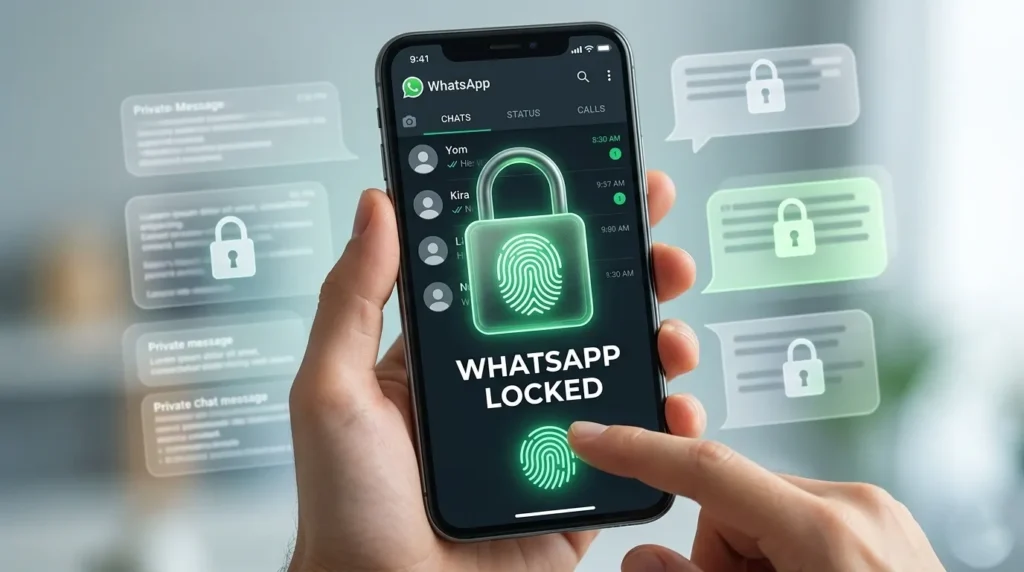
While locking your entire phone screen is a good habit, it is simply not enough. To ensure maximum privacy, you need to add a dedicated app lock fingerprint layer specifically for WhatsApp.
In this easy guide, we will show you how to lock your WhatsApp using biometric security so that nobody can read your chats without your permission.
Why You Should Avoid Using PINs for Chat Privacy
Many people use traditional PIN codes or patterns to lock their social media apps. While it seems safe, it has a few major security flaws that can compromise your data.
The Danger of Over-the-Shoulder Spying
When you type a 4-digit PIN or draw a pattern in public—like on a bus, train, or at the office—it is incredibly easy for someone standing next to you to look at your screen. Once they memorize your code, your privacy is gone.
Smudge Marks on the Screen
Our fingers leave oily residue on smartphone screens. If you use a pattern lock for WhatsApp, a nosy friend can literally hold your phone against the light, see the smudge lines, and guess your pattern in seconds.
Step-by-Step Guide: Enable Fingerprint Lock in WhatsApp
The best thing about WhatsApp is that you don’t even need to download a heavy third-party app to secure it. It has an excellent, built-in secure app lock feature that uses your phone’s native fingerprint sensor.
Follow these simple steps to activate it right now:
Open WhatsApp on your smartphone.
Tap the Three Dots (Menu icon) in the top right corner and open Settings.
Go to the Privacy section.
Scroll down to the bottom and tap on App Lock (or Fingerprint Lock).
Toggle the switch to ON (Unlock with biometric).
Scan your finger on your phone’s sensor to confirm your identity.
Smart Tip: WhatsApp will ask you how quickly it should lock the app. Always select “Immediately”. This ensures that the moment you close WhatsApp, it locks down instantly.
Frequently Asked Questions (FAQs)
Ans: No, absolutely not. Turning on the applock fingerprint feature only places a secure digital wall over the app interface. Your chats, group messages, voice notes, and media backups will remain completely safe and untouched.
Ans: Yes! When someone calls you on WhatsApp, the call screen will appear normally, and you can answer it instantly without scanning your finger. However, to view missed calls or open the chat screen afterward, the app will require your fingerprint.
Ans: If your sensor fails due to dust, moisture, or injury, you do not need to worry. WhatsApp utilizes your phone’s main system biometrics. If the fingerprint fails, it will automatically give you an option to type your phone’s main backup PIN or pattern to unlock the chats.
Conclusion
Your personal conversations should stay between you and the person you are chatting with. Leaving WhatsApp unprotected is an open invitation for nosy friends or family members to spy on your life. By spending less than a minute to turn on the built-in fingerprint app lock, you get absolute peace of mind knowing your digital diary is completely secure.